

Creating an API Key
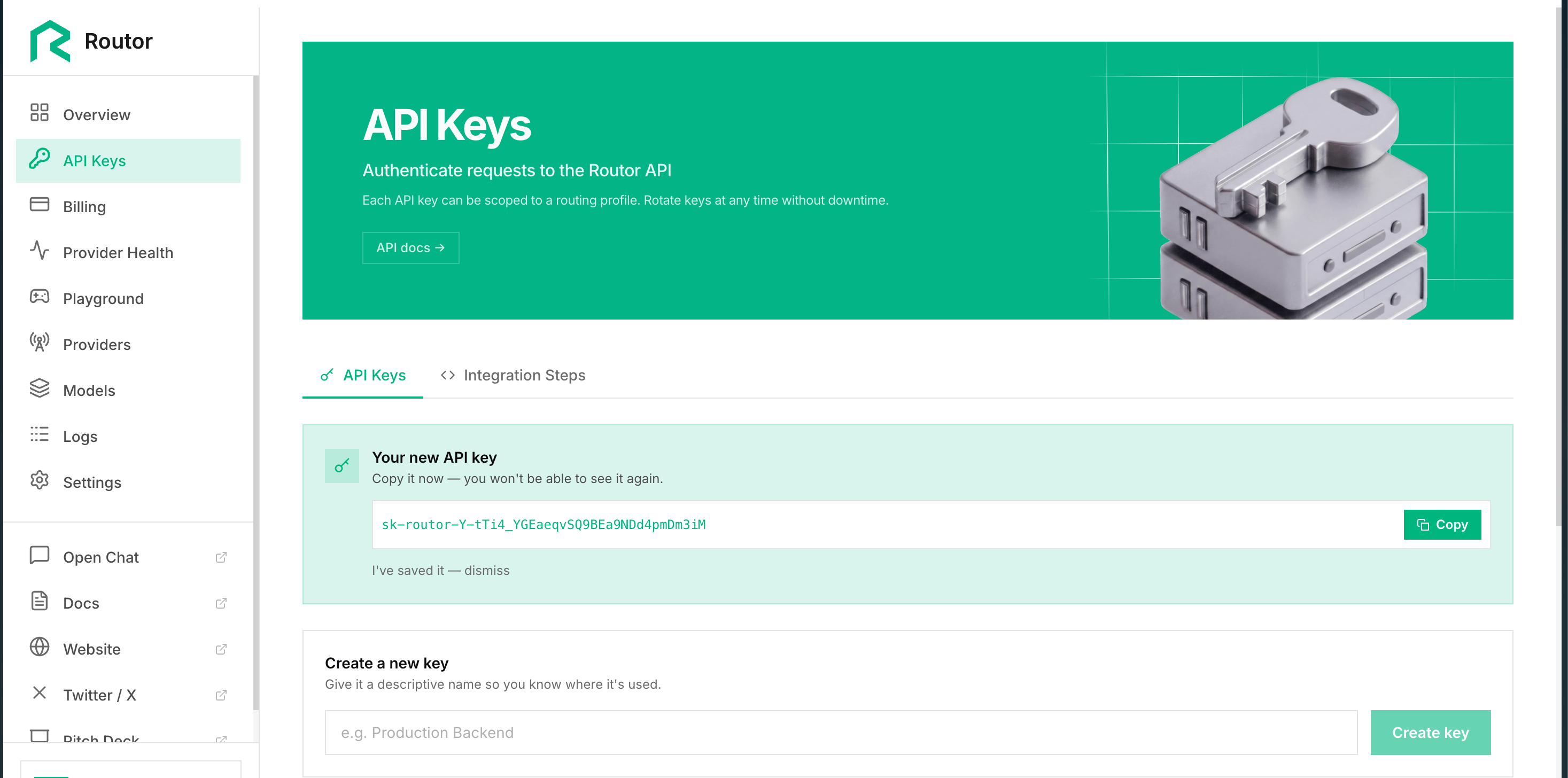
- Click API Keys in the left sidebar
- Click Create Key
- Enter a name like
production,staging, ormy-chatbot - Click Create
- Copy the key. It starts with
sk-routor-and is only shown once
Using Your Key
Pass it in theAuthorization header:
apiKey in the OpenAI SDK:
Key List
The API Keys page shows all your active keys:
Profile keys are created automatically when you create a Routing Profile. They have the profile routing rules baked in.
Deleting a Key
Click Delete next to a key. This is immediate and permanent. Any app using that key will get401 errors from that point on.
If you delete a profile key, the routing profile still exists but has no key. You will need to recreate the profile to get a new one.
Key Security
- Keys are stored as one-way hashes. Routor cannot recover a key if you lose it
- The key is only shown at creation time, so copy it immediately
- Treat your Routor key like a password and do not commit it to version control
- Use environment variables in production: